Saturday, 10 May 2014

NEXUS 7

Google announces a quad-core, 1080p Nexus 7


A sharper display, wireless charging, quad-core processor, and rear-facing camera: Google’s 2013 edition of the Nexus 7 proves you can get plenty of bang for your buck, even though its latest entry in the budget tablet market now exceeds that magical $199 price point.
But what’s an extra $30 between friends? Google’s new cost-of-entry isn’t so much a price increase as an acknowledgement of success: You loved us at $199. You really loved us. So take our hand, and let us show you what we can really deliver for just a few dollars more.
Android fans have been waiting months for a hardware update from Team Google. Thecompany’s I/O event in May was conspicuously lacking in tablet or phone reveals, but on Wednesday, Google finally pulled the curtain on the latest iteration of its flagship Nexus hardware. Though the Nexus 7 tablet bears the same name as its predecessor, its new look and long list of feature updates—including the much-anticipated Android 4.3—give it the aura of an entirely new gadget.
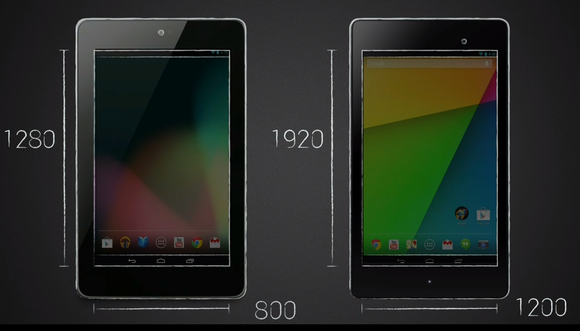
The only similarity between 2012’s Nexus 7 and this year’s model is its 7-inch diagonal screen size. Indeed, the two tablets are so different, they really should have different names. Google’s new tablet is thinner and sleeker—Hugo Barra, vice president of Android product management at Google, explained that the side bezels were reduced by 3mm on each side so that the device would be easier to hold with one hand. Shaving off that 6mm provides a “much more comfortable grip,” Barra said at the event.
Google also stuck with a pure black-on-black design with the same soft touch that Barra says “everyone loved in the original Nexus 7.”
Today’s announcements also pushed forth a new processor architecture for the Nexus 7. Rather than stick with Nvidia’s quad-core Tegra 3 chip, the Asus-built device now features a Qualcomm 1.5GHz quad-core Snapdragon S4 Pro processor. It’s the same chip featured inside the Nexus 4 handset announced late last year, though according to Android Police, initial Nexus 7 performance benchmarks show the processor performing just a bit better inside the tablet. This particular chip should help increase battery life, as well as speed up software multitasking. The tablet’s RAM has also been increased from 1GB to 2GB to help support processing power.
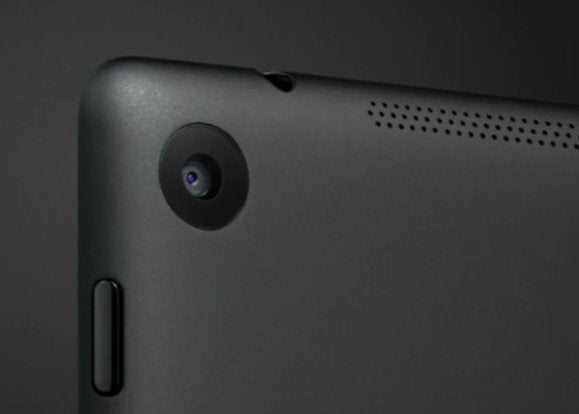
Photo-frantic users will appreciate that the new Nexus 7 adds a 5-megapixel rear-facing camera to the mix, complementing the front-facing 1.2 megapixel camera that was available in the original model. There’s also a Slim Port on the back of the device that enables you to pipe 1080p video to your TV with an HDMI cable.
The new Nexus 7 will also be the first device to feature the 4.3 version of Android. The new OS version is still called Jelly Bean, and is merely an incremental update with the inclusion of features like restricted profiles for individual user accounts and Bluetooth LE support, a standard that makes Bluetooth connections more energy-efficient and thus less taxing on battery life. You’ll also be able to take advantage of the new graphics capabilities—lens flare effects, richer texture and more—made possible by support for OpenGL ES 3.0.
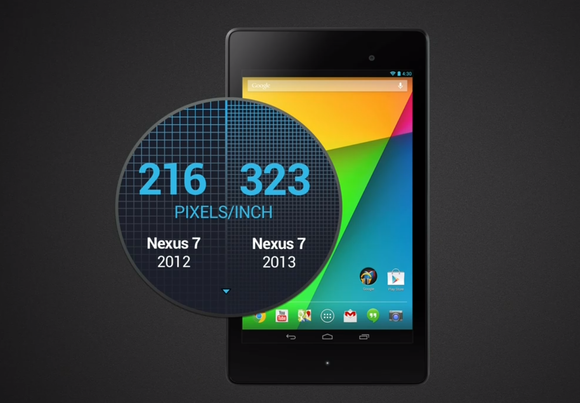
The Nexus 7’s new 1080p display is also a huge improvement over the last generation. With a resolution of 1920 by 1200, and a pixel density of 323 pixels per inch, display sharpness is a big leap forward relative to last year’s 216 ppi, 1280 by 800 display resolution. Applications, pictures, games, and movies will appear clearer and brighter, making the Nexus 7 a true contender among other entertainment-focused tablets like theiPad mini.
And to help add to that experience, the new Nexus 7 will feature dual speakers on each side of the device. Google teamed up with Fraunhofer, a German engineering firm, to integrate virtual surround sound for the onboard speakers and any connected headphones. Barra compared this new features to a “5.1 surround sound system… just using the device speakers or any pair of headphones.”
Other hardware perks include the ability to wireless charge the device with an Qi-standardized wireless charger, a feature that is only available on a limited variety of Android devices. You’ll be able to simply plop down the device on a compatible charging base and have it refuel overnight. The Nexus 7 will also have NFC capabilities, and unlike its predecessor, Google and Asus will only offer a 16GB and 32GB variant of the Android tablet, priced at $229 and $269, respectively. You can also pick up a 32GB LTE version for $349. Last year's Nexus 7 is now listed as "no longer available" in the Google Play store.
WATCH THIS..
ENJOY...
                                        PEACE.... 

INSTALLING ANDROID IN PC

Hey guys this is ANONYMOUS India from XDA(junior member)......

This post is about installing android in pc


How to install Android on your PC


Windows 8’s bold grab for tablet relevance may snatch headlines, but it isn’t the only operating system looking to extend its established supremacy over a whole new class of devices. As the PC market hemorrhages, more and more manufacturers are turning to Google’s Android OS to power PCs that once carried Windows alone. From hybrids to all-in-ones to an Intel-promised flood of incredibly cheap “Droidbooks,” Android cometh.
But wait! Isn’t Android made for smartphones? And weren’t the first Android-powered laptops a bit … disappointing? And aren’t there some lingering questions about howAndroid performs in a PC-type environment?
asus eee pad transformer prime
Yup.
Fear not, all ye curious. The intriguingAndroid-x86 project has ported Google’s open-source OS from the ARM processors common in smartphones and tablets over to the x86 chips found in everyday computers, so you can take Android for a spin on your PC before plunking cash down on one of the latest examples of computing convergence. And even if you have no plans to buy an Android PC, playing with Android on your current PC is just plain fun.
We can run android in pc by two ways..
  1. BY VIRTUAL MACHINE
  2. BY REGULAR OS INSTALLATION

How does Google’s mobile-focused operating system stack up on a full-size, not-so-mobile computer? You’ll know firsthand after giving Android a test drive in a virtual machine.

Why a virtual machine?

Admittedly, virtual machines aren’t as peppy as physical ones unless you have a bunch of system resources to toss around. And yes, you can install Android on your computer’s hard drive—but I don’t recommend even dual-booting this particular OS.
Hardware support for the operating system can be hit-and-miss, though the Android-x86 project mitigates that somewhat by providing several ISO files built around specific hardware, such as Asus and Lenovo ThinkPad laptops. Even so, running Android in a virtual machine is more consistently headache-free than dual-booting it. (Trust me—I tried it on three different machines.)
If you want to dual-boot Android regardless, the steps for doing so are basically the same as dual-booting Windows 8, at least up until the point of actually installing Android. From there, you’ll want to pick up from the “Install Android on your PC” segment below.
No matter how you decide to roll, you’ll need to grab some virtual machine software—we’re using Oracle’s excellent (and free) VirtualBox for this article—and the latest version of the Android-x86 port available. If an ISO for your specific laptop model is available, grab it.
Before we begin, note that you can click any image in this article to expand it to full size.

Get VirtualBox up and running

Once you’ve downloaded all the software, open VirtualBox and click the big blue Openbutton in the toolbar to begin. A Create Virtual Machine window will appear. Name your digital Android PC anything you like, but be sure to select Linux as the type of operating system, and Linux 2.6 as the version. Click Next.
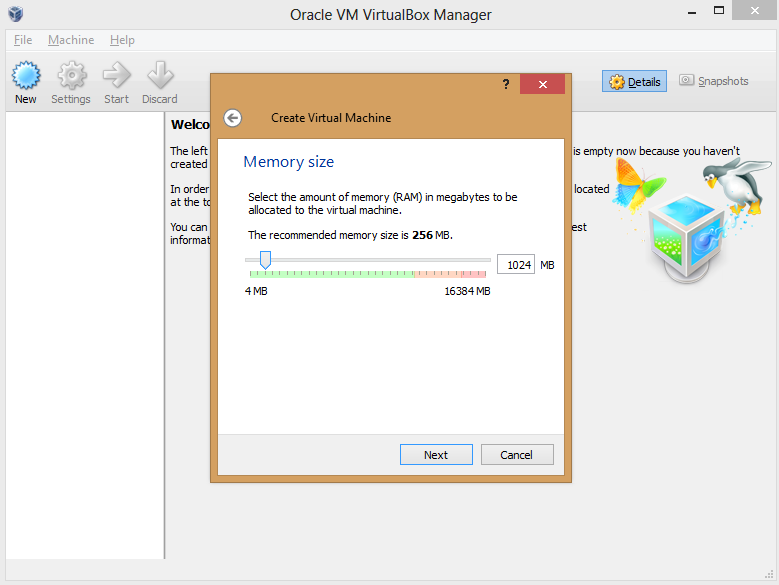
In the option screens that follow, you have to configure your VM’s hardware allocation. Give it at least 512MB of RAM if you can, though Android-x86 can run on 256MB of RAM if you’re using a resource-strapped PC. The more memory you can spare, the smoother the results will be, though you don’t want to allocate so much to Android that your native experience suffers while the VM is active.
Create a virtual hard drive using the default options, adding more storage if you wish. (Remember: Android was made for phones, so it doesn’t take much space, even with multiple apps installed.)
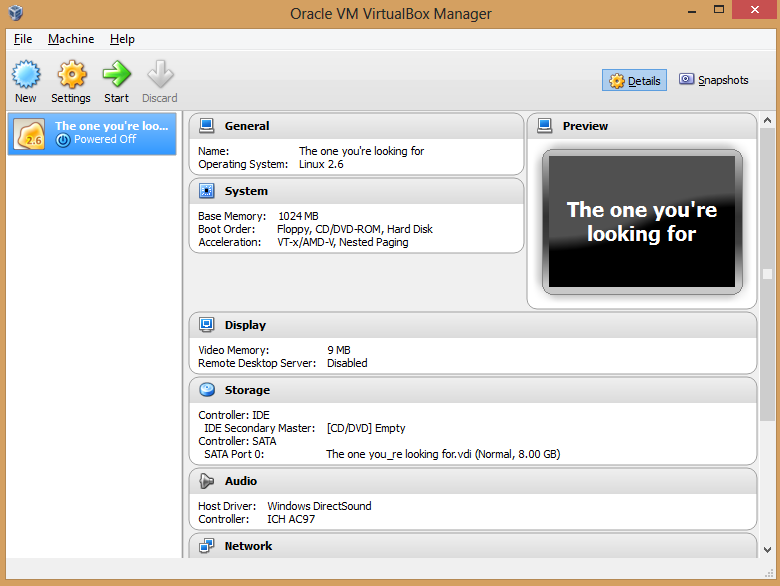
Boom! The VM appears in the VirtualBox manager.
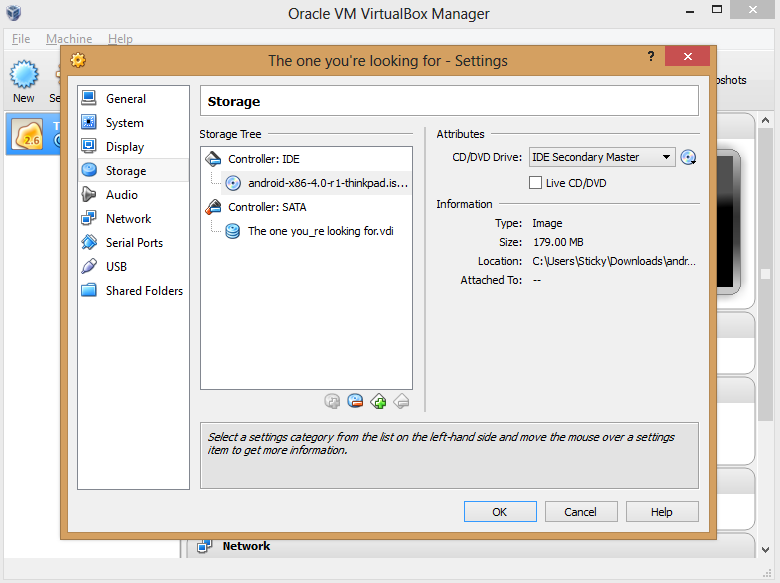
Next, you need to point the VM at your Android-x86 ISO. Click the Storage button in the VM manager and, in the window that appears, select the Empty option underneath ‘Controller: IDE’ to bring up various ‘Attributes’ options to the right. There, click the disc icon to the right of ‘CD/DVD Drive’ and select Choose a virtual CD/DVD disk file from the drop-down menu that appears. Simply browse your hard drive and select the Android-x86 ISO to load it in the virtual machine, and then click OK when you’re done.
You’re not quite finished yet, though. Click the Audio option, and in the window that appears, click the drop-down ‘Audio controller’ box and select ICH AC97. If you leave it on the default Soundblaster 16 setting, your Android VM’s audio won’t work properly.
Got it? Great! Now you’re ready to install Android on your PC. The process is a bit trickier than your standard Windows installation.

Install Android on your PC

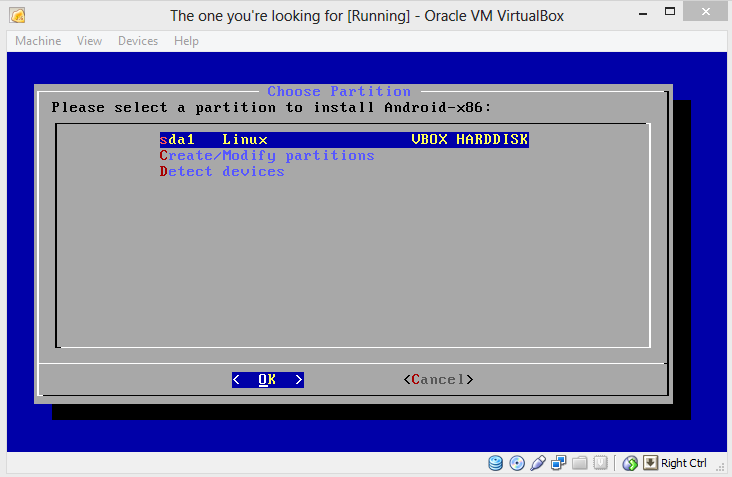
Click the name of your Android-x86 VM in VirtualBox’s left pane, and then click the big green Start arrow. After clicking OK on any dialog boxes that pop up—be sure to read them!—you’ll quickly notice that you can’t use your mouse during installation. Use the arrow keys to scroll down to Installation, and then press Enter. Press Enter to selectCreate/Modify partitions on the next screen as well.
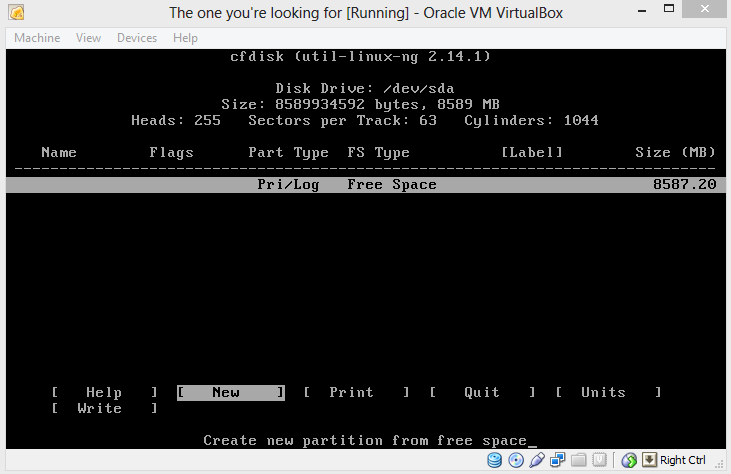
If you usually stick to graphical interfaces, the next menu may throw you for a loop, but it’s nothing to be scared of. Just navigate to New and press Enter again. Select Primary as the partition type, and then press Enter once more to set the partition to the default size. You’ll see the following screen.
Press Enter on the Bootable option, which should add ‘Boot’ under the ‘Flags’ listing, next to the computer name. With that done, select the Write option. A warning appears, threatening that writing to disk will wipe any data already on the disk. Who cares? This is a virtual machine, you silly installation software. Type yes, and then press Enter yet again.
Highlight the Quit option and press Enter to return to the Choose Partition screen, which now lists the ‘sda1’ partition you created on the virtual hard drive. Press Enter again. You’ll see a list of formatting options. Select ext3, press Enter, and select Yes when asked if you really want to format the disk.
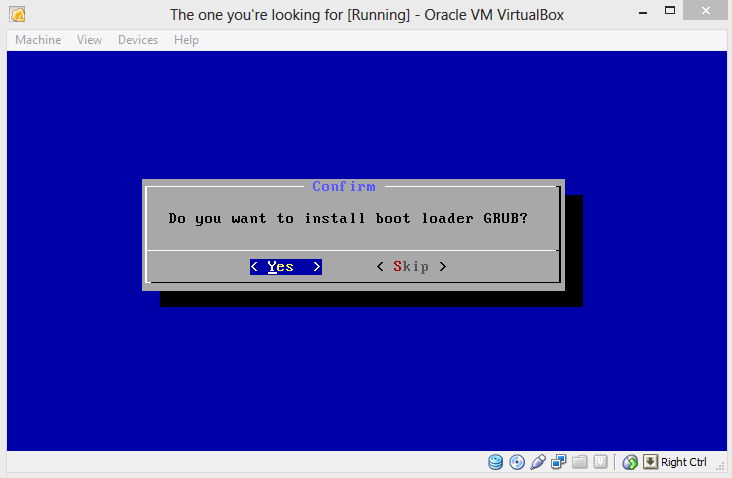
Do you want to install boot loader GRUB? Yup! You also want to install the /system directory as read/write when asked.
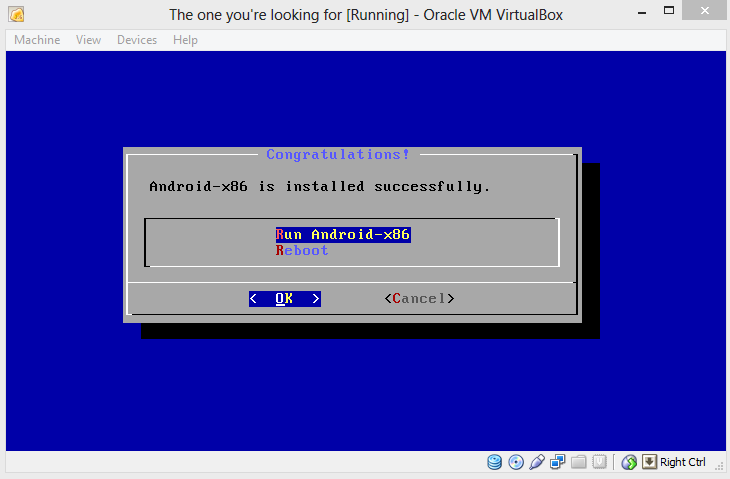
Aaaaand there’s the screen we’ve been waiting for. Run Android-x86.

Assess Android

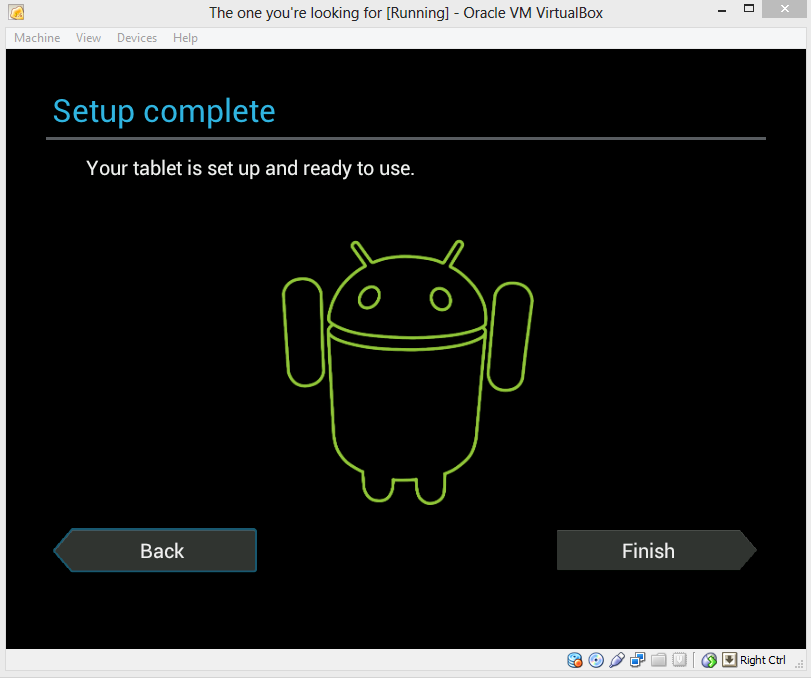
You’re going to set up the operating system the way you would on a new Android phone or tablet. It’s pretty straightforward, and you can even connect the Android-x86 VM to your Google account. But before you do that, you need to coax a mouse cursor on screen, because trying to navigate a touchscreen-optimized OS by keyboard is maddening.
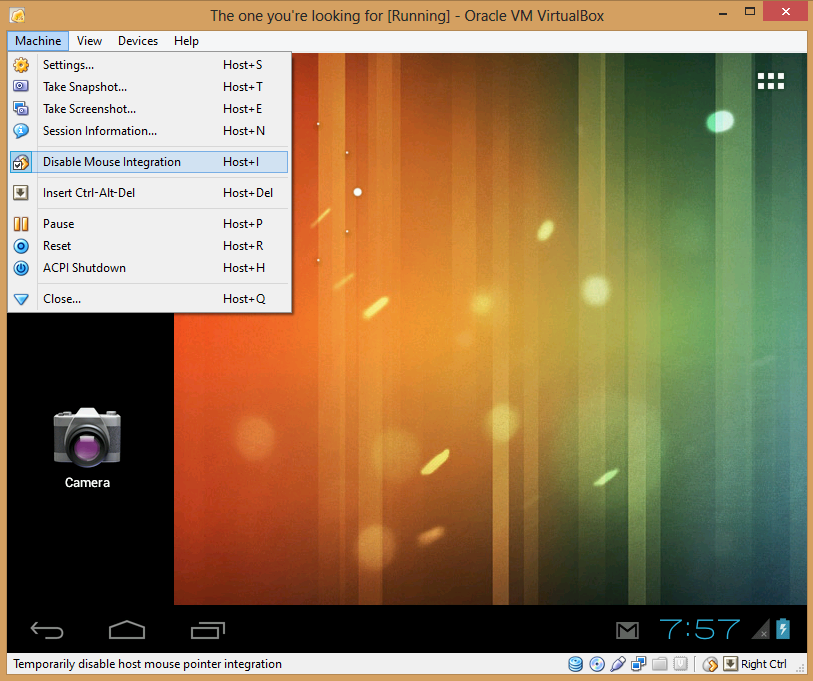
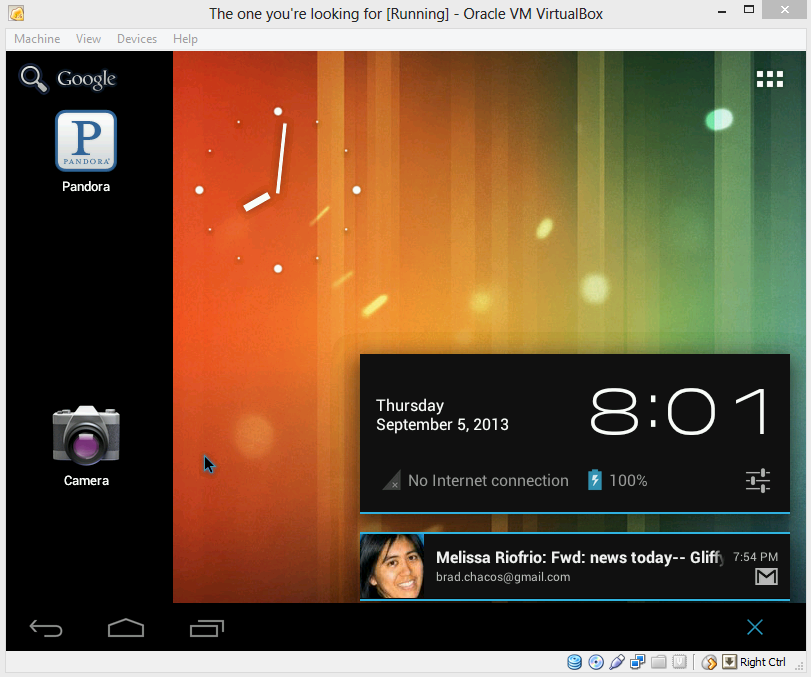
Click Machine in VirtualBox’s toolbar, and select Disable Mouse Integration. Dialog boxes may appear; if so, click through them and continue. Disabling mouse integration allows you to manually control whether your mouse is controlling your primary OS or Android-x86. Pressing the right Ctrl button on your keyboard switches between the two operating systems. To swipe, click and hold the mouse button, and then move the mouse.
With that taken care of, you’re free to explore Android on your PC!
Don’t expect a flawless experience with Android-x86. You can’t sync your Google account’s apps to the VM, despite what the setup process implies—at least not yet. (Fortunately, Android-x86 ships with Google Play installed, and most apps I’ve tried work just fine, though you might notice the occasional wonkiness.) Nor does the virtualized OS work with any of the touchscreen displays I’ve tried. And yes, performance can be kind of poky, no matter how much RAM you toss at Android-x86.
That being said, giving Android a whirl on your PC will nevertheless give you a good feel for what’s possible on an Android-powered laptop. The result isn’t perfect, but if you give it a shot, I think you’ll wind up pleasantly surprised. Android wasn’t made for big screens, but all those smartphone-optimized apps hold up okay, and a ton of them are completely free, completely awesome, and can’t be found on proper PCs.
And hey—for what it’s worth, the Android Gmail interface blows away the ugly webmail UI.

EASY ROOT ANDROID THROUGH PC

Hey guys this is ANONYMOUS India(Junior member)
In this post we are going to see about an easy root through PC...
REQUISITES:

  • PC
  • SRSROOT SOFTWARE

OPEN SRSROOT...
  • click Root device(ALL METHODS) to root..(NO IDEA ABOUT SMART ROOT)


NOW IT WILL START TO ROOT...
FOLLOW STEPS IN YOUR ANDROID AS SAME AS FRAMAROOT IN THIS POST

ENJOY...

PEACE....


EASY SIMPLE APP CREATOR

Hey guys this is ANONYMOUS India from XDA(Junior member).....
so here we come to the simple easy app creator....

This website allows to create a simple complete app by providing a frame.....
For example
To create a browser......
  • CLICK "CREATE NOW" BUTTON


  • THEN SELECT THE TYPE OF APP YOU WANT TO CREATE....HERE I CHOSE BROWSER

  • MENTION THE FOLLOWING DESCRIPTION IN THE NEXT WINDOW
  1. BROWSER STYLE
  2. HOMEPAGE AND SEARCH LINKS
  3. MODE
  4. APP NAME,ICON......
VIEW THE PREVIEW

CLICK CREATE APP...
          HERE I HAVE CREATED A SIMPLE BROWSER....
CREATE YOUR APP....UNLEASH YOUR IDEAS..

ENJOY....
PEACE...


CREATING ANDROID APPS USING SDK

Hey guys this is ANONYMOUS India from XDA(Junior member)...
This post is about creating android appS VIA SDK

DEPENDENCIES AND PREREQUISITES


Before you start this class, be sure you have your development environment set up. You need to:
  1. Download the Android SDK.
  2. Install the ADT plugin for Eclipse (if you’ll use the Eclipse IDE).
  3. Download the latest SDK tools and platforms using the SDK Manager.

Note: Make sure you install the most recent versions of the ADT plugin and the Android SDK before you start this class. The procedures described in this class may not apply to earlier versions.

If you haven't already done these tasks, start by downloading the Android SDK and following the install steps. Once you've finished the setup, you're ready to begin this class.

This class uses a tutorial format that incrementally builds a small Android app that teaches you some fundamental concepts about Android development, so it's important that you follow each step.


LESSON 1:

Creating an Android Project

An Android project contains all the files that comprise the source code for your Android app. The Android SDK tools make it easy to start a new Android project with a set of default project directories and files.
This lesson shows how to create a new project either using Eclipse (with the ADT plugin) or using the SDK tools from a command line.
Note: You should already have the Android SDK installed, and if you're using Eclipse, you should also have the ADT plugininstalled (version 22.6.2 or higher). If you don't have these, follow the guide to Installing the Android SDK before you start this lesson.

Create a Project with Eclipse


  1. Click New  in the toolbar.
  2. In the window that appears, open the Android folder, select Android Application Project, and click Next.

  3. Figure 1. The New Android App Project wizard in Eclipse.
  4. Fill in the form that appears:
    • Application Name is the app name that appears to users. For this project, use "My First App."
    • Project Name is the name of your project directory and the name visible in Eclipse.
    • Package Name is the package namespace for your app (following the same rules as packages in the Java programming language). Your package name must be unique across all packages installed on the Android system. For this reason, it's generally best if you use a name that begins with the reverse domain name of your organization or publisher entity. For this project, you can use something like "com.example.myfirstapp." However, you cannot publish your app on Google Play using the "com.example" namespace.
    • Minimum Required SDK is the lowest version of Android that your app supports, indicated using the API level. To support as many devices as possible, you should set this to the lowest version available that allows your app to provide its core feature set. If any feature of your app is possible only on newer versions of Android and it's not critical to the app's core feature set, you can enable the feature only when running on the versions that support it (as discussed in Supporting Different Platform Versions). Leave this set to the default value for this project.
    • Target SDK indicates the highest version of Android (also using the API level) with which you have tested with your application.
      As new versions of Android become available, you should test your app on the new version and update this value to match the latest API level in order to take advantage of new platform features.
    • Compile With is the platform version against which you will compile your app. By default, this is set to the latest version of Android available in your SDK. (It should be Android 4.1 or greater; if you don't have such a version available, you must install one using the SDK Manager). You can still build your app to support older versions, but setting the build target to the latest version allows you to enable new features and optimize your app for a great user experience on the latest devices.
    • Theme specifies the Android UI style to apply for your app. You can leave this alone.
    Click Next.
  5. On the next screen to configure the project, leave the default selections and click Next.
  6. The next screen can help you create a launcher icon for your app.
    You can customize an icon in several ways and the tool generates an icon for all screen densities. Before you publish your app, you should be sure your icon meets the specifications defined in the Iconography design guide.
    Click Next.
  7. Now you can select an activity template from which to begin building your app.
    For this project, select BlankActivity and click Next.
  8. Leave all the details for the activity in their default state and click Finish.
Your Android project is now a basic "Hello World" app that contains some default files. To run the app follow lesson 2.

Create a Project with Command Line Tools


If you're not using the Eclipse IDE with the ADT plugin, you can instead create your project using the SDK tools from a command line:
  1. Change directories into the Android SDK’s tools/ path.
  2. Execute:
    android list targets
    This prints a list of the available Android platforms that you’ve downloaded for your SDK. Find the platform against which you want to compile your app. Make a note of the target id. We recommend that you select the highest version possible. You can still build your app to support older versions, but setting the build target to the latest version allows you to optimize your app for the latest devices.
    If you don't see any targets listed, you need to install some using the Android SDK Manager tool. See Adding Platforms and Packages.
  3. Execute:
    android create project --target <target-id> --name MyFirstApp \
    --path <path-to-workspace>/MyFirstApp --activity MainActivity \
    --package com.example.myfirstapp
    
    Replace <target-id> with an id from the list of targets (from the previous step) and replace <path-to-workspace> with the location in which you want to save your Android projects.
Your Android project is now a basic "Hello World" app that contains some default files. To run the app, continue to the lesson 2
Tip: Add the platform-tools/ as well as the tools/ directory to your PATH environment variable.

LESSON 2:

Running Your App


If you followed the previous lesson to create an Android project, it includes a default set of "Hello World" source files that allow you to immediately run the app.
How you run your app depends on two things: whether you have a real Android-powered device and whether you're using Eclipse. This lesson shows you how to install and run your app on a real device and on the Android emulator, and in both cases with either Eclipse or the command line tools.
Before you run your app, you should be aware of a few directories and files in the Android project:
AndroidManifest.xml
The manifest file describes the fundamental characteristics of the app and defines each of its components. You'll learn about various declarations in this file as you read more training classes.
One of the most important elements your manifest should include is the <uses-sdk> element. This declares your app's compatibility with different Android versions using the android:minSdkVersion andandroid:targetSdkVersion attributes. For your first app, it should look like this:
<manifest xmlns:android="http://schemas.android.com/apk/res/android" ... >
    <uses-sdk android:minSdkVersion="8" android:targetSdkVersion="19" />
    ...</manifest>
You should always set the android:targetSdkVersion as high as possible and test your app on the corresponding platform version. For more information, read Supporting Different Platform Versions.
src/
Directory for your app's main source files. By default, it includes an Activity class that runs when your app is launched using the app icon.
res/
Contains several sub-directories for app resources. Here are just a few:
drawable-hdpi/
Directory for drawable objects (such as bitmaps) that are designed for high-density (hdpi) screens. Other drawable directories contain assets designed for other screen densities.
layout/
Directory for files that define your app's user interface.
values/
Directory for other various XML files that contain a collection of resources, such as string and color definitions.
When you build and run the default Android app, the default Activity class starts and loads a layout file that says "Hello World." The result is nothing exciting, but it's important that you understand how to run your app before you start developing.

Run on a Real Device


If you have a real Android-powered device, here's how you can install and run your app:
  1. Plug in your device to your development machine with a USB cable. If you're developing on Windows, you might need to install the appropriate USB driver for your device. For help installing drivers, see the OEM USB Drivers document.
  2. Enable USB debugging on your device.
    • On most devices running Android 3.2 or older, you can find the option under Settings > Applications > Development.
    • On Android 4.0 and newer, it's in Settings > Developer options.
      Note: On Android 4.2 and newer, Developer options is hidden by default. To make it available, go toSettings > About phone and tap Build number seven times. Return to the previous screen to findDeveloper options.
To run the app from Eclipse:
  1. Open one of your project's files and click Run  from the toolbar.
  2. In the Run as window that appears, select Android Application and click OK.
Eclipse installs the app on your connected device and starts it.
Or to run your app from a command line:
  1. Change directories to the root of your Android project and execute:
    ant debug
  2. Make sure the Android SDK platform-tools/ directory is included in your PATH environment variable, then execute:
    adb install bin/MyFirstApp-debug.apk
  3. On your device, locate MyFirstActivity and open it.
That's how you build and run your Android app on a device! To start developing, continue to the lesson 3

Run on the Emulator


Whether you're using Eclipse or the command line, to run your app on the emulator you need to first create anAndroid Virtual Device (AVD). An AVD is a device configuration for the Android emulator that allows you to model different devices.

Figure 1. The AVD Manager showing a few virtual devices.
To create an AVD:
  1. Launch the Android Virtual Device Manager:
    1. In Eclipse, click Android Virtual Device Manager from the toolbar.
    2. From the command line, change directories to<sdk>/tools/ and execute:
      android avd
  2. In the Android Virtual Device Manager panel, click New.
  3. Fill in the details for the AVD. Give it a name, a platform target, an SD card size, and a skin (HVGA is default).
  4. Click Create AVD.
  5. Select the new AVD from the Android Virtual Device Manager and click Start.
  6. After the emulator boots up, unlock the emulator screen.
To run the app from Eclipse:
  1. Open one of your project's files and click Run  from the toolbar.
  2. In the Run as window that appears, select Android Application and click OK.
Eclipse installs the app on your AVD and starts it.
Or to run your app from the command line:
  1. Change directories to the root of your Android project and execute:
    ant debug
  2. Make sure the Android SDK platform-tools/ directory is included in your PATH environment variable, then execute:
    adb install bin/MyFirstApp-debug.apk
  3. On the emulator, locate MyFirstActivity and open it.
That's how you build and run your Android app on the emulator! To start developing, continue to the lesson 3.

LESSON 3:

Building a Simple User Interface


The graphical user interface for an Android app is built using a hierarchy of View and ViewGroup objects. View objects are usually UI widgets such as buttons or text fields andViewGroup objects are invisible view containers that define how the child views are laid out, such as in a grid or a vertical list.
Android provides an XML vocabulary that corresponds to the subclasses of View and ViewGroup so you can define your UI in XML using a hierarchy of UI elements.
Figure 1. Illustration of how ViewGroup objects form branches in the layout and contain other View objects.
In this lesson, you'll create a layout in XML that includes a text field and a button. In the following lesson, you'll respond when the button is pressed by sending the content of the text field to another activity.

Alternative Layouts

Declaring your UI layout in XML rather than runtime code is useful for several reasons, but it's especially important so you can create different layouts for different screen sizes. For example, you can create two versions of a layout and tell the system to use one on "small" screens and the other on "large" screens. For more information, see the class about Supporting Different Devices.

Create a Linear Layout

Open the fragment_main.xml file from the res/layout/ directory.
Note: In Eclipse, when you open a layout file, you’re first shown the Graphical Layout editor. This is an editor that helps you build layouts using WYSIWYG tools. For this lesson, you’re going to work directly with the XML, so click the fragment_main.xml tab at the bottom of the screen to open the XML editor.
The BlankActivity template you chose when you created this project includes the fragment_main.xml file with a RelativeLayout root view and a TextView child view.
First, delete the <TextView> element and change the <RelativeLayout> element to <LinearLayout>. Then add the android:orientation attribute and set it to "horizontal". The result looks like this:
<LinearLayout xmlns:android="http://schemas.android.com/apk/res/android"
    xmlns:tools="http://schemas.android.com/tools"
    android:layout_width="match_parent"
    android:layout_height="match_parent"
    android:orientation="horizontal" >
</LinearLayout>
LinearLayout is a view group (a subclass of ViewGroup) that lays out child views in either a vertical or horizontal orientation, as specified by the android:orientation attribute. Each child of a LinearLayoutappears on the screen in the order in which it appears in the XML.
The other two attributes, android:layout_width and android:layout_height, are required for all views in order to specify their size.
Because the LinearLayout is the root view in the layout, it should fill the entire screen area that's available to the app by setting the width and height to "match_parent". This value declares that the view should expand its width or height to match the width or height of the parent view.
For more information about layout properties, see the Layout guide.

Add a Text 

About these attributes:
android:id
This provides a unique identifier for the view, which you can use to reference the object from your app code, such as to read and manipulate the object (you'll see this in the next lesson).
The at sign (@) is required when you're referring to any resource object from XML. It is followed by the resource type (id in this case), a slash, then the resource name (edit_message).
The plus sign (+) before the resource type is needed only when you're defining a resource ID for the first time. When you compile the app, the SDK tools use the ID name to create a new resource ID in your project's gen/R.java file that refers to the EditText element. Once the resource ID is declared once this way, other references to the ID do not need the plus sign. Using the plus sign is necessary only when specifying a new resource ID and not needed for concrete resources such as strings or layouts. See the sidebox for more information about resource objects.
android:layout_width and android:layout_height
Instead of using specific sizes for the width and height, the"wrap_content" value specifies that the view should be only as big as needed to fit the contents of the view. If you were to instead use "match_parent", then theEditText element would fill the screen, because it would match the size of the parent LinearLayout. For more information, see the Layouts guide.
android:hint
This is a default string to display when the text field is empty. Instead of using a hard-coded string as the value, the "@string/edit_message" value refers to a string resource defined in a separate file. Because this refers to a concrete resource (not just an identifier), it does not need the plus sign. However, because you haven't defined the string resource yet, you’ll see a compiler error at first. You'll fix this in the next section by defining the string.
Note: This string resource has the same name as the element ID: edit_message. However, references to resources are always scoped by the resource type (such as id or string), so using the same name does not cause collisions.

About resource objects

A resource object is simply a unique integer name that's associated with an app resource, such as a bitmap, layout file, or string.
Every resource has a corresponding resource object defined in your project's gen/R.java file. You can use the object names in the R class to refer to your resources, such as when you need to specify a string value for the android:hint attribute. You can also create arbitrary resource IDs that you associate with a view using theandroid:id attribute, which allows you to reference that view from other code.
The SDK tools generate the R.javaeach time you compile your app. You should never modify this file by hand.
For more information, read the guide toProviding Resources.

Add String Resources


When you need to add text in the user interface, you should always specify each string as a resource. String resources allow you to manage all UI text in a single location, which makes it easier to find and update text. Externalizing the strings also allows you to localize your app to different languages by providing alternative definitions for each string resource.
By default, your Android project includes a string resource file at res/values/strings.xml. Add a new string named "edit_message" and set the value to "Enter a message." (You can delete the "hello_world" string.)
While you’re in this file, also add a "Send" string for the button you’ll soon add, called "button_send".
The result for strings.xml looks like this:
<?xml version="1.0" encoding="utf-8"?>
<resources>
    <string name="app_name">My First App</string>
    <string name="edit_message">Enter a message</string>
    <string name="button_send">Send</string>
    <string name="action_settings">Settings</string>
    <string name="title_activity_main">MainActivity</string>
</resources>
For more information about using string resources to localize your app for other languages, see the Supporting Different Devices class.

Add a Button


Now add a <Button> to the layout, immediately following the <EditText> element:
    <Button
        android:layout_width="wrap_content"
        android:layout_height="wrap_content"
        android:text="@string/button_send" />
The height and width are set to "wrap_content" so the button is only as big as necessary to fit the button's text. This button doesn't need the android:id attribute, because it won't be referenced from the activity code.

Make the Input Box Fill in the Screen Width


The layout is currently designed so that both the EditText and Button widgets are only as big as necessary to fit their content, as shown in figure 2.
Figure 2. The EditText and Button widgets have their widths set to "wrap_content".
This works fine for the button, but not as well for the text field, because the user might type something longer. So, it would be nice to fill the unused screen width with the text field. You can do this inside a LinearLayoutwith the weight property, which you can specify using the android:layout_weight attribute.
The weight value is a number that specifies the amount of remaining space each view should consume, relative to the amount consumed by sibling views. This works kind of like the amount of ingredients in a drink recipe: "2 parts vodka, 1 part coffee liqueur" means two-thirds of the drink is vodka. For example, if you give one view a weight of 2 and another one a weight of 1, the sum is 3, so the first view fills 2/3 of the remaining space and the second view fills the rest. If you add a third view and give it a weight of 1, then the first view (with weight of 2) now gets 1/2 the remaining space, while the remaining two each get 1/4.
The default weight for all views is 0, so if you specify any weight value greater than 0 to only one view, then that view fills whatever space remains after all views are given the space they require. So, to fill the remaining space in your layout with the EditText element, give it a weight of 1 and leave the button with no weight.
    <EditText
        android:layout_weight="1"
        ... />
In order to improve the layout efficiency when you specify the weight, you should change the width of theEditText to be zero (0dp). Setting the width to zero improves layout performance because using"wrap_content" as the width requires the system to calculate a width that is ultimately irrelevant because the weight value requires another width calculation to fill the remaining space.
    <EditText
        android:layout_weight="1"
        android:layout_width="0dp"
        ... />
Figure 3 shows the result when you assign all weight to the EditText element.
Figure 3. The EditText widget is given all the layout weight, so fills the remaining space in the LinearLayout.
Here’s how your complete layout file should now look:
<?xml version="1.0" encoding="utf-8"?>
<LinearLayout xmlns:android="http://schemas.android.com/apk/res/android"
    xmlns:tools="http://schemas.android.com/tools"
    android:layout_width="match_parent"
    android:layout_height="match_parent"
    android:orientation="horizontal">
    <EditText android:id="@+id/edit_message"
        android:layout_weight="1"
        android:layout_width="0dp"
        android:layout_height="wrap_content"
        android:hint="@string/edit_message" />
    <Button
        android:layout_width="wrap_content"
        android:layout_height="wrap_content"
        android:text="@string/button_send" />
</LinearLayout>
This layout is applied by the default Activity class that the SDK tools generated when you created the project, so you can now run the app to see the results:
  • In Eclipse, click Run  from the toolbar.
  • Or from a command line, change directories to the root of your Android project and execute:
    ant debug
    adb install bin/MyFirstApp-debug.apk
Continue to the next lesson to learn how you can respond to button presses, read content from the text field, start another activity, and more.

LESSON 4:

Starting Another Activity

After completing the previous lesson, you have an app that shows an activity (a single screen) with a text field and a button. In this lesson, you’ll add some code to MainActivitythat starts a new activity when the user clicks the Send button.

Respond to the Send Button


To respond to the button's on-click event, open thefragment_main.xml layout file and add theandroid:onClick attribute to the <Button> element:
<Button
    android:layout_width="wrap_content"
    android:layout_height="wrap_content"
    android:text="@string/button_send"
    android:onClick="sendMessage" />
The android:onClick attribute’s value, "sendMessage", is the name of a method in your activity that the system calls when the user clicks the button.
Open the MainActivity class (located in the project's src/ directory) and add the corresponding method:
/** Called when the user clicks the Send button */
public void sendMessage(View view) {
    // Do something in response to button
}
In order for the system to match this method to the method name given to android:onClick, the signature must be exactly as shown. Specifically, the method must:
  • Be public
  • Have a void return value
  • Have a View as the only parameter (this will be the View that was clicked)
Next, you’ll fill in this method to read the contents of the text field and deliver that text to another activity.

Build an Intent


An Intent is an object that provides runtime binding between separate components (such as two activities). The Intent represents an app’s "intent to do something." You can use intents for a wide variety of tasks, but most often they’re used to start another activity.
Inside the sendMessage() method, create an Intent to start an activity called DisplayMessageActivity:
Intent intent = new Intent(this, DisplayMessageActivity.class);
This requires that you import the Intent class:
import android.content.Intent;
Tip: In Eclipse, press Ctrl + Shift + O to import missing classes (Cmd + Shift + O on Mac).
The constructor used here takes two parameters:
  • A Context as its first parameter (this is used because the Activity class is a subclass of Context)
  • The Class of the app component to which the system should deliver the Intent (in this case, the activity that should be started)
Note: The reference to DisplayMessageActivity will raise an error if you’re using an IDE such as Eclipse because the class doesn’t exist yet. Ignore the error for now; you’ll create the class soon.
An intent not only allows you to start another activity, but it can carry a bundle of data to the activity as well. Inside thesendMessage() method, use findViewById() to get theEditText element and add its text value to the intent:
Intent intent = new Intent(this, DisplayMessageActivity.class);
EditText editText = (EditText) findViewById(R.id.edit_message);
String message = editText.getText().toString();
intent.putExtra(EXTRA_MESSAGE, message);
Note: You now need an import statement forandroid.widget.EditText. You'll define the EXTRA_MESSAGE constant in a moment.
An Intent can carry a collection of various data types as key-value pairs called extras. The putExtra()method takes the key name in the first parameter and the value in the second parameter.
In order for the next activity to query the extra data, you should define the key for your intent's extra using a public constant. So add the EXTRA_MESSAGE definition to the top of the MainActivity class:
public class MainActivity extends ActionBarActivity {
    public final static String EXTRA_MESSAGE = "com.example.myfirstapp.MESSAGE";
    ...
}
It's generally a good practice to define keys for intent extras using your app's package name as a prefix. This ensures they are unique, in case your app interacts with other apps.

Start the Second Activity


To start an activity, call startActivity() and pass it your Intent. The system receives this call and starts an instance of the Activity specified by the Intent.
With this new code, the complete sendMessage() method that's invoked by the Send button now looks like this:
/** Called when the user clicks the Send button */
public void sendMessage(View view) {
    Intent intent = new Intent(this, DisplayMessageActivity.class);
    EditText editText = (EditText) findViewById(R.id.edit_message);
    String message = editText.getText().toString();
    intent.putExtra(EXTRA_MESSAGE, message);
    startActivity(intent);
}
Now you need to create the DisplayMessageActivity class in order for this to work.

Create the Second Activity


Figure 1. The new activity wizard in Eclipse.
To create a new activity using Eclipse:
  1. Click New  in the toolbar.
  2. In the window that appears, open theAndroid folder and select Android Activity. Click Next.
  3. Select BlankActivity and click Next.
  4. Fill in the activity details:
    • Project: MyFirstApp
    • Activity Name: DisplayMessageActivity
    • Layout Name: activity_display_message
    • Fragment Layout Name: fragment_display_message
    • Title: My Message
    • Hierarchial Parent: com.example.myfirstapp.MainActivity
    • Navigation Type: None
    Click Finish.
If you're using a different IDE or the command line tools, create a new file namedDisplayMessageActivity.java in the project's src/ directory, next to the original MainActivity.java file.
Open the DisplayMessageActivity.java file. If you used Eclipse to create this activity:
  • The class already includes an implementation of the required onCreate() method. You will update the implementation of this method later.
  • There's also an implementation of the onCreateOptionsMenu() method, but you won't need it for this app so you can remove it.
  • There's also an implementation of onOptionsItemSelected() which handles the behavior for the action bar's Up behavior. Keep this one the way it is.
  • There's also a PlaceholderFragment class that extends Fragment. You will not need this class in the final version of this activity.
Fragments decompose application functionality and UI into reusable modules. For more information on fragments, see the Fragments API Guide. The final version of this activity does not use fragments.
Note: Your activity may look different if you did not use the latest version of the ADT plugin. Make sure you install the latest version of the ADT plugin to complete this tutorial.
The DisplayMessageActivity class should now look like this:
public class DisplayMessageActivity extends ActionBarActivity {

    @Override
    protected void onCreate(Bundle savedInstanceState) {
        super.onCreate(savedInstanceState);
        setContentView(R.layout.activity_display_message);

        if (savedInstanceState == null) {
            getSupportFragmentManager().beginTransaction()
                .add(R.id.container, new PlaceholderFragment()).commit();
        }
    }

    @Override
    public boolean onOptionsItemSelected(MenuItem item) {
        // Handle action bar item clicks here. The action bar will
        // automatically handle clicks on the Home/Up button, so long
        // as you specify a parent activity in AndroidManifest.xml.
        int id = item.getItemId();
        if (id == R.id.action_settings) {
            return true;
        }
        return super.onOptionsItemSelected(item);
    }

    /**
     * A placeholder fragment containing a simple view.
     */
    public static class PlaceholderFragment extends Fragment {

        public PlaceholderFragment() { }

        @Override
        public View onCreateView(LayoutInflater inflater, ViewGroup container,
                  Bundle savedInstanceState) {
              View rootView = inflater.inflate(R.layout.fragment_display_message,
                      container, false);
              return rootView;
        }
    }
}
If you used an IDE other than Eclipse, update your DisplayMessageActivity class with the above code.
All subclasses of Activity must implement the onCreate() method. The system calls this when creating a new instance of the activity. This method is where you must define the activity layout with thesetContentView() method and is where you should perform initial setup for the activity components.
Note: If you are using an IDE other than Eclipse, your project does not contain theactivity_display_message layout that's requested by setContentView(). That's OK because you will update this method later and won't be using that layout.

Add the title string

If you used Eclipse, you can skip to the next section, because the template provides the title string for the new activity.
If you're using an IDE other than Eclipse, add the new activity's title to the strings.xml file:
<resources>
    ...
    <string name="title_activity_display_message">My Message</string>
</resources>

Add it to the manifest

All activities must be declared in your manifest file, AndroidManifest.xml, using an <activity> element.
When you use the Eclipse tools to create the activity, it creates a default entry. If you're using a different IDE, you need to add the manifest entry yourself. It should look like this:
<application ... >
    ...
    <activity
        android:name="com.example.myfirstapp.DisplayMessageActivity"
        android:label="@string/title_activity_display_message"
        android:parentActivityName="com.example.myfirstapp.MainActivity" >
        <meta-data
            android:name="android.support.PARENT_ACTIVITY"
            android:value="com.example.myfirstapp.MainActivity" />
    </activity>
</application>
The android:parentActivityName attribute declares the name of this activity's parent activity within the app's logical hierarchy. The system uses this value to implement default navigation behaviors, such as Up navigation on Android 4.1 (API level 16) and higher. You can provide the same navigation behaviors for older versions of Android by using the Support Library and adding the <meta-data> element as shown here.
Note: Your Android SDK should already include the latest Android Support Library. It's included with the ADT Bundle but if you're using a different IDE, you should have installed it during the Adding Platforms and Packages step. When using the templates in Eclipse, the Support Library is automatically added to your app project (you can see the library's JAR file listed under Android Dependencies). If you're not using Eclipse, you need to manually add the library to your project—follow the guide for setting up the Support Library then return here.
If you're developing with Eclipse, you can run the app now, but not much happens. Clicking the Send button starts the second activity but it uses a default "Hello world" layout provided by the template. You'll soon update the activity to instead display a custom text view, so if you're using a different IDE, don't worry that the app won't yet compile.

Receive the Intent


Every Activity is invoked by an Intent, regardless of how the user navigated there. You can get the Intentthat started your activity by calling getIntent() and retrieve the data contained within it.
In the DisplayMessageActivity class’s onCreate() method, get the intent and extract the message delivered by MainActivity:
Intent intent = getIntent();
String message = intent.getStringExtra(MainActivity.EXTRA_MESSAGE);

Display the Message


To show the message on the screen, create a TextView widget and set the text using setText(). Then add theTextView as the root view of the activity’s layout by passing it to setContentView().
The complete onCreate() method for DisplayMessageActivity now looks like this:
@Override
public void onCreate(Bundle savedInstanceState) {
    super.onCreate(savedInstanceState);

    // Get the message from the intent
    Intent intent = getIntent();
    String message = intent.getStringExtra(MainActivity.EXTRA_MESSAGE);

    // Create the text view
    TextView textView = new TextView(this);
    textView.setTextSize(40);
    textView.setText(message);

    // Set the text view as the activity layout
    setContentView(textView);
}
You can now run the app. When it opens, type a message in the text field, click Send, and the message appears on the second activity.

Figure 2. Both activities in the final app, running on Android 4.4.
That's it, you've built your first Android app!
THANKS FOR ANDROID DEVELOPERS..
FOR MORE TUTORIAL JOIN 

ENJOY.....

PEACE...